 SimpleListen
Listen to articles in your podcast app, full text included.
For the articles you keep saving for later.
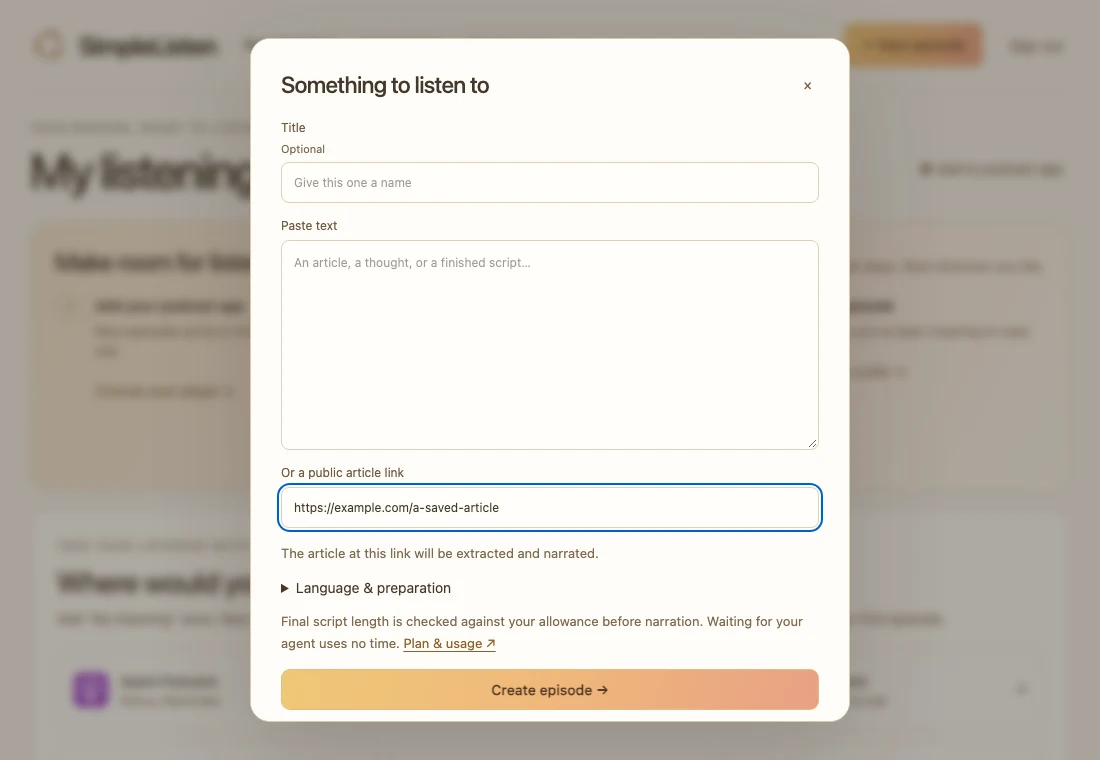
That long interview you bookmarked can come with you on an evening walk. Send SimpleListen a public article link or paste its text, then hear it read aloud in your podcast app or on the web.
Create your listening feed ↗How it works
- 1
Send a public article URL
Paste a link into a new episode, or copy in the text you are allowed to use. Public pages work best. SimpleListen cannot sign into websites or bypass a paywall.
- 2
Extract the article, then narrate it
Reader Mode extracts the main readable content so navigation, scripts and page furniture are left out. Choose cleaned narration, or let a connected agent prepare a script for listening.
- 3
Find it in your own podcast feed
Once narration is complete, the episode appears in your feed. Subscribe once in a compatible player and keep adding articles without moving audio files around.
Leave yourself a place to start
The source text
When you stop reading halfway through an article, leave a short note about where to return. A saved link tells you what the article is. A sentence such as ‘Start again at the example about train timetables’ tells you what you still wanted to understand.

Keep the note beside the link. The next time you have a few minutes, you can resume without reconstructing why you saved it.
Hear the complete example
Both paragraphs are kept in full.
Cedar voice · AI narration · Written for this guide
Read the exact narration script
When you stop reading halfway through an article, leave a short note about where to return. A saved link tells you what the article is. A sentence such as ‘Start again at the example about train timetables’ tells you what you still wanted to understand. Keep the note beside the link. The next time you have a few minutes, you can resume without reconstructing why you saved it.
Try a link, or use the article text
Choose New episode and paste a readable public link into the article-link field, or paste the text itself. The sample above uses original text pasted directly, so you can compare the source with the complete narration without visiting another site.
| What you see | What to do |
|---|---|
| Login or paywall | Paste text you have permission to use. SimpleListen cannot sign in or bypass access controls. |
| Missing content or menus in the extraction | Copy the article body and submit it as text instead. |
| Charts, tables or code | Ask your agent for a spoken version that preserves the meaning, then review the script. |
Have the article in your inbox? Use the email-forwarding workflow. Once audio is ready, follow the personal-feed setup.
A full article, with room for your own preferences
Full content is the starting point. Choose the voice you prefer and keep the article’s original language. Automatic language detection helps select the language setting; you can override it for short or mixed-language text.
An article written for a screen may contain charts, long links or dense tables. For those, ask your agent to describe the information in spoken language without dropping its detail. SimpleListen narrates the supplied script; it does not independently research or verify the article.
Public links, pasted text and forwarded HTML
A readable public URL is the quickest path. If a site needs a login, renders everything in JavaScript or does not expose its article cleanly, paste the relevant text instead. Only submit content you have the right to use.
You can also email a link by itself in the message body or forward an HTML article attachment. Reader Mode cleans supported HTML attachments. PDFs and scans are not supported.
Listen where your other podcasts already live
SimpleListen provides subscription links for Apple Podcasts, Overcast, Pocket Casts, Podcast Addict and AntennaPod. Other apps can work when they let you add an RSS feed manually. If your preferred player cannot add a feed by URL, use a compatible player or the SimpleListen web player.
Feeds and media use unlisted URLs. They are not submitted to podcast directories, but anyone with a link can access them. Keep your feed address to yourself.
A SimpleListen guide by Vladimir Haltakov. Updated . See the privacy policy and terms for details.
Frequently asked questions
Can SimpleListen read an article behind a paywall?
SimpleListen does not bypass paywalls or log into websites. If you have permission to use the content, paste its text rather than submitting a protected URL.
Will it read the website menus?
Reader Mode attempts to extract the main article and exclude navigation and scripts. Extraction depends on the page. Paste the article text if a website does not extract correctly.
Is the article converted into a two-person conversation?
No. The default is a narrated version of the full content. Your agent can prepare a different script if you ask, and SimpleListen reads that script.